Triton Student System (TSS) Login and Navigation
TSS is UC San Diego's new student information system, replacing MyTritonLink for Fall 2026. It's the tool you'll use to book courses, see your schedule and grades, take care of billing, financial aid, and more.
Logging in to TSS
1. There are two ways to log into TSS:
- Use the direct TSS link: sis.ucsd.edu
- Navigate from the TritonLink website for current students (click on the Triton Student System icon on the top right side of the screen).

- Extended Studies is for the Division of Extended Studies students and main campus alumni.
- UCSD SSO is for employees and main campus students (undergraduates, graduate students, Schools of Medicine and Pharmacy, etc.).
- Click on the corresponding button for your classification.

3. Next, you'll land on the Single Sign-On login page.
- Type your UCSD email address (TritonLink user name) and password into the fields and click Login.
- Complete two-factor authentication via Duo (find help setting up or trouble-shooting Duo).
TSS Homepage Overview
After you log in, you'll arrive at the TSS Homepage. At the top of the screen, you'll see two tabs: My Home and Student.
You are currently on the My Home tab.
- Toward the top of the screen, you'll see a section called Pages. Underneath, you will see a Student tile. Click the Student tile to go to your Student Overview.
- You can also click the Student tab at the top of the screen to go directly to your Student Overview — it takes you to the same place as the Student tile.

Note: You may receive a timeout error after a period of inactivity. If you can't log back in by refreshing your browser, open a new tab and use the TSS login link to return to the login page. You'll be prompted to complete Single Sign-On again.
First Steps After Login
The first time you log in — and any time your personal information requires review — you may see a Verify Personal Details prompt. This is asking you to confirm that your contact information on file is current. Click Verify to acknowledge and continue to your Student Overview Homepage.

When you login into TSS for the first time,
make sure you take the following actions:
- Review and update your personal information, including addresses and emergency contact information.
- Check your academic information, including major/minor information and schedule information, once available.
- Enter your direct deposit information in TSS. Your current direct deposit information in TritonLink will not be transferred to TSS. You will need to re-enroll in direct deposit in TSS. If your direct deposit information is missing or out of date, university payments or stipends may be delayed. For more information about Direct Deposit and the pause on Financial Aid disbursements during the TSS transition read this important notice on updating your Direct Deposit information.
Your Student Overview Homepage
Your Student Overview Homepage is your central hub in TSS. On the left, you'll see your profile card displaying your name, Triton Student Number (TSN), and university email address.
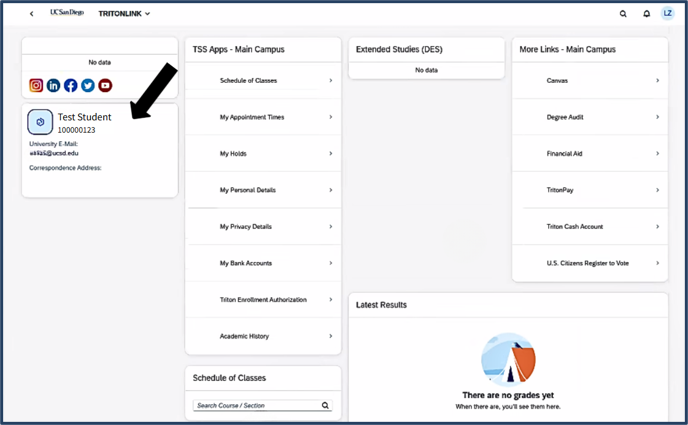
The main panel is organized into several sections:
-
TSS Apps – Main Campus: Links to your most-used student tools, including:
-
Schedule of Classes: Search for available courses by course number or section. A search bar is also available directly on your Student Overview page for quick access.
-
Note: A Schedule of Classes search bar also appears lower on your Student Overview page — this is a shortcut to the same tool. You can use either one to search for courses.
-
-
My Appointment Times: View your assigned booking window — the date and time when your course booking opens each quarter.
-
My Holds: View any holds on your account that may prevent you from booking courses or accessing other services. Holds must be resolved before you can book. Read more about Holds in TSS.
-
My Personal Details: View and update your personal information on file with the university.
-
My Privacy Details: Manage your Family Educational Rights and Privacy Act (FERPA) privacy settings and control what information the university may share. Read more about Privacy Details in TSS.
-
My Bank Accounts: Add or update your bank account information for direct deposit of financial aid refunds or other payments.
-
Triton Enrollment Authorization (TEA): Submit a request to book a course when a restriction would otherwise prevent you from doing so. Read more about TEA.
-
Academic History: View your academic record, including past coursework and grades.
-
-
Extended Studies (DES): Links to tools specific to Extended Studies students. If you are a Main Campus student, this section may show "No data."
-
More Links – Main Campus: Quick access to Canvas, Degree Audit, Financial Aid, TritonPay, Triton Cash Account, and U.S. Citizens Register to Vote.
-
Canvas: Access your course sites and learning materials.
-
Degree Audit: Review your progress toward degree completion.
-
Financial Aid: Access your financial aid information and award details.
-
TritonPay: View and pay your student account balance.
-
Triton Cash Account: Manage your Triton Cash funds.
-
U.S. Citizens Register to Vote: Access voter registration resources.

-
-
Latest Results: Displays your most recent grades once they are available. If no grades have been posted yet, this section will show "There are no grades yet."

-
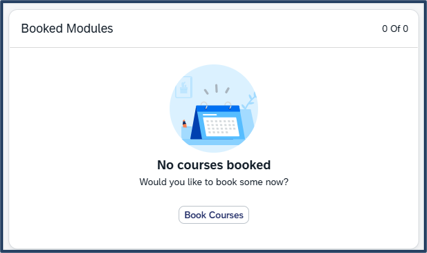
Booked Modules: Shows the courses you are currently booked in for the upcoming or current quarter. If you have not yet booked any courses, this section will show "No courses booked."
-
Select Book Courses to begin booking. Read the booking guide to prepare for booking courses.
-
Note: Booking courses is only available during your assigned booking window.
-
-
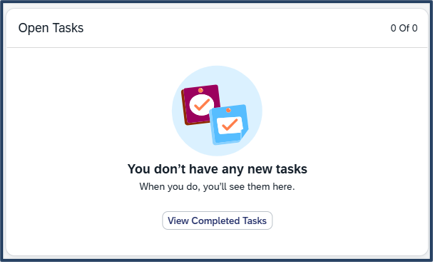
Open Tasks: Displays any pending tasks that require your action. If you have no tasks, this section will show "You don't have any new tasks." Select View Completed Tasks to see tasks you have already finished.
-
Upcoming Events: A calendar view showing your upcoming classes and university events. Events are color-coded: orange for classes, blue for holidays, green for university closures, purple for multiple events on the same day, and red for canceled events. If no classes are booked, the calendar will show "No classes."

-
Program Overview: Displays information about your current academic program. If no program data is available, this section will show "No data." You may also start an application for a new program by clicking the New Application button in this window.
Find TSS Support
Support Portal: SNOW Ticket Submission
Email tss@ucsd.edu (Mon-Sun)
Call (858) 246-4357, press 2 for TSS Support (Mon-Sun)
Visit Applied Physics & Mathematics (APM) building, Room 1313, First Floor (Mon-Fri only)
Join Zoom Office Hours (Mon-Fri only)
For hours and more details, go to: Getting Support For TSS