Triton Enrollment Authorization (TEA)
This guide walks you through how to submit a TEA request, track its status, and what to do once it's approved.
🎓 Note for graduate students: This guide covers TEA requests for all students, including undergraduate and graduate students. Where your experience differs from undergraduates — specifically around level restrictions — you’ll see a callout like this one (graduation cap symbol + Note for graduate students title).
What is Triton Enrollment Authorization (TEA)?
Triton Enrollment Authorization (TEA) is a request you submit when you want to book a course but don't automatically meet the requirements. For example, you're missing a prerequisite, the course is restricted to a different major, or the course requires department approval (such as an independent study or special studies course). You may also need to submit a TEA request to late add a course or to request a Unit Limit Exception.
Submitting a TEA request is not the same as booking. Getting your request approved does not automatically enroll you in the course — you'll still need to book it yourself. See the Approved Request section below for more information.
🎓 Note for graduate students and scholar-athletes: After the add deadline, submit a TEA Drop request to drop a course or a Change request to update the units or grading option on a course you are already booked into.
Before You Start
Before you submit a TEA request, there are a few things worth checking. Some issues, like a booking hold on your account, will block you from booking even after your request is approved, so it's better to catch them early. Before you begin your TEA request:
- Check the course's prerequisites and restrictions yourself first. See the Preparing to Book Courses guide for instructions on how to find this information.
- If you already meet a requirement, the system checks this automatically — you won't be asked about it on the request form.
🎓 Note for graduate students: If you're a graduate student, you generally do not need approval to take an undergraduate-level course, unless that specific course has other restrictions (such as a major restriction or prerequisites you haven't met).
Creating a TEA Request
-
Log in to TSS and click on the search bar at the top of the screen.
-
Type Triton Enrollment Authorization Request into the bar and click on Triton Enrollment Authorization - Request.

-
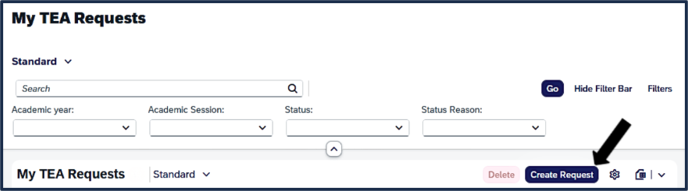
This opens the My TEA Requests screen. This screen allows you to create requests, search for requests, and review requests statuses.
-
Click Create Request.
Fill out your TEA Request
1. General
If the Program Type doesn’t populate automatically, click on the Program Type dropdown and select the appropriate option from the list. If you are graduating soon or have recently graduated from your undergraduate program and are submitting a request for your new graduate program, make sure to choose GR - Graduate as your program type.
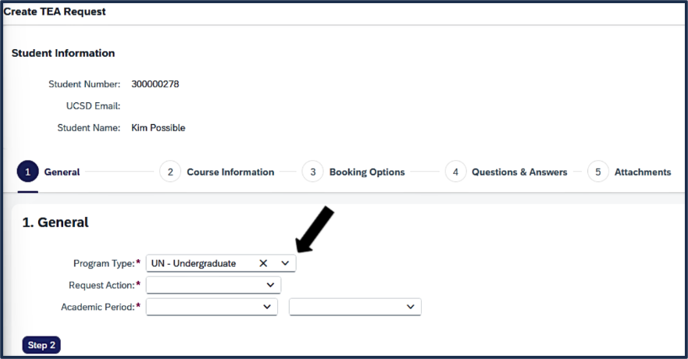
Click the Request Action dropdown and select the appropriate option from the list: Add, Drop, or Change.Note: Drop and Change requests are only available to graduate students and scholar-athletes.

Click on the Academic Period dropdown on the left and select the appropriate year.
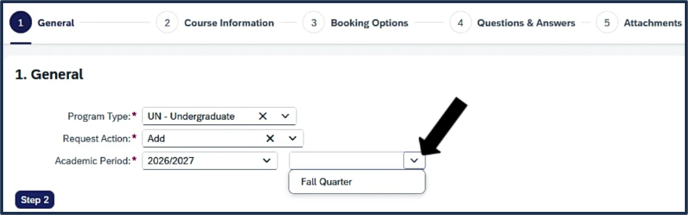
Click the Step 2 button on the bottom left to continue to Course Information.

2. Course Information
Click on the search icon next to the Department field.

Select the appropriate department from the pop up window. You may also type the department name into the search bar.

After you’ve selected the department, click on the search icon next to the Course field.

Select the appropriate course from the pop up window.
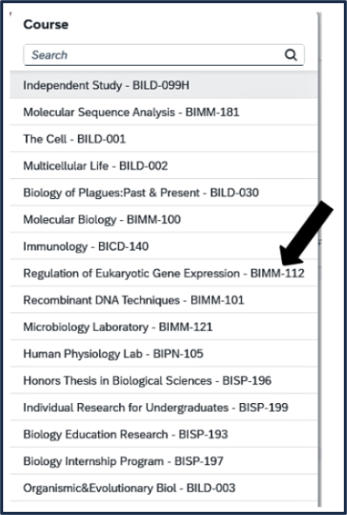
Note: If you're unable to find your course, don’t worry. You may not be able to find it right away for a number of reasons (e.g. the course may not yet have an instructor assigned, it may be in a different department, etc.). Contact your department or the VAC for assistance.
Click on the Instructor dropdown and select the appropriate instructor. For most courses, this is a dropdown filtered by your previous selections. NOTE: For Special Studies courses, type the instructor's name to search and select.
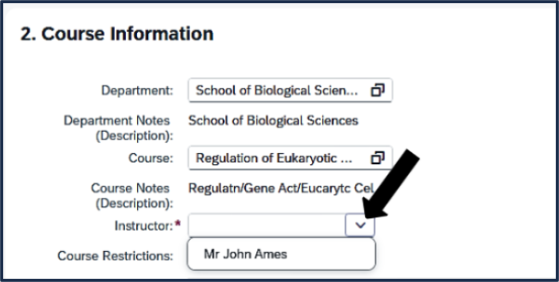
Click the Step 3 button at the bottom left to continue to the next section, Booking Options.
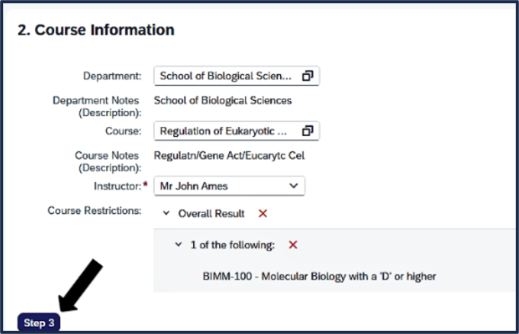
Note: Course restrictions will show on this page, indicated by a red X. Click on the drop down arrow next to Overall Result to see the restriction(s).
Course numbers and section codes follow a specific format in TSS. Every course number includes a hyphen between the subject and the number, and lower-division courses include leading zeroes. For example: MATH-018, CHEM-006A.
Returning student? Course numbers you used previously map directly to TSS's format — for example, MATH 18 is now MATH-018.
3. Booking Options
Clicking on Step 3 moves you to the Booking Options section. The course section you selected in the previous step will automatically populate in the Section field if there is only one offering.
- If there is more than one offering, select the appropriate course section.
- If you do not select a specific section, your request will be reviewed for all sections (this is recommended if there are several sections and you would like approval for any/all of them).
- If you choose to change your Grading Option, you may do so by clicking on the Grading Option dropdown and selecting your preferred grading option.
- If the course has variable units, select the number of Units you intend to book. You will need to select that same number of units when booking.
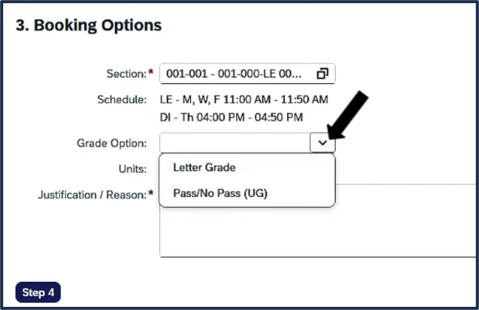
Note: The grading option you select on your TEA request does not lock in your grading option for booking — you'll select it again when you book the course. TEA approval for a specific grading option (such as Pass/No Pass) also does not mean your degree program allows it. Check with your advisor via the Virtual Advising Center (VAC) if you have questions.
Enter your written justification / reason (the details surrounding your circumstance and why you are submitting the TEA request) in the Justification / Reason free text field. When complete, click on Step 4, Questions and Answers.

Requesting a Unit Limit Exception
A Unit Limit Exception is not tied to a specific course. Use it when you need to take more units than your term limit allows.
Enter the total number of units you want to take this term, then continue through the request. Undergraduate requests go to your college, and graduate requests go to your home department. Some requests that meet the requirements are approved automatically within about a minute. Check the Status Reason on your request to see what happened.
4. Questions & Answers (includes Special Studies options)
Step 4 opens the Questions & Answers section.
- If “No additional questions are required at this time” shows on the screen, continue to the next step, Attachments.
- If additional questions appear, see the Special Studies Questions below.

Special Studies Questions
Some courses — independent study, special studies, Regent Scholars, and similar program-specific courses — require you to answer a standard set of core Special Studies questions, and some courses have an additional block of questions set by the academic department.
These vary by department and course, but commonly include things like:
- Project goals and specific research objectives
- Weekly hours breakdown (e.g., reading, research, meetings, writing)
- Mentor name and title
- Lab/computation skills you'll use
- Required safety training certificates or other supporting documents
These department questions are required and indicated with a red asterisk. If you skip one, the system won't let you proceed — make sure you've answered everything before clicking Review.
5. Attachments
Step 5 allows you to upload supporting documentation if needed— you can attach up to 3 documents by clicking Browse and selecting the relevant document. Use the clear button to remove an uploaded document.
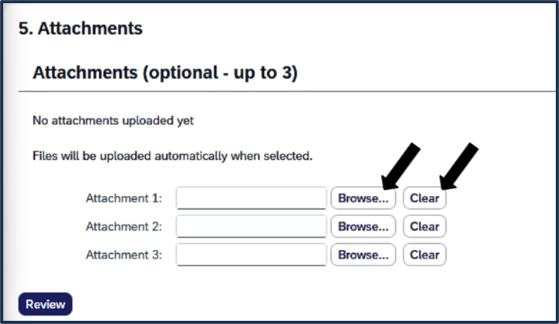
Click Review to check your TEA request and confirm accuracy.

Review and Submit
Review all of the information. Make sure to thoroughly review all submission information. Inaccuracies may delay your request.
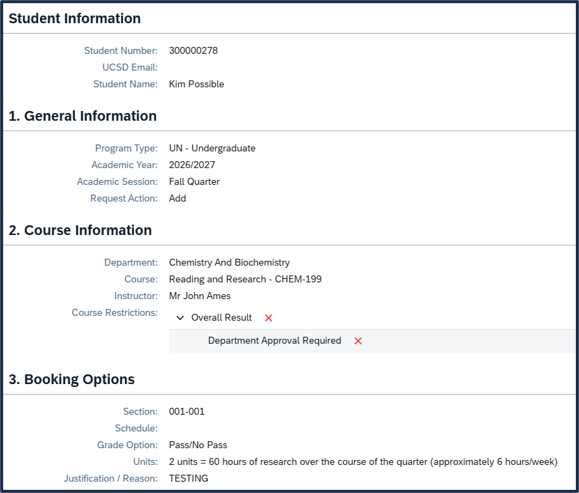
Note: Review and Submit are two separate steps. Use Review to check everything before you officially submit.
If you need to go back and revise any of the information you entered, click the Go Back to Edit button. Make sure to select the Go Back to Edit button, as using the browser’s back button may cause an error. You may also save as a draft to return later or delete your request using the buttons at the bottom of the screen.

If all information is accurate, click the Submit button.

Once submitted, the TEA request will appear on the My TEA Requests dashboard. You may return to this dashboard at any time to check the status of your request, create a new request, or delete an existing request. For more information about statuses, review the Tracking Your Request Status section below.
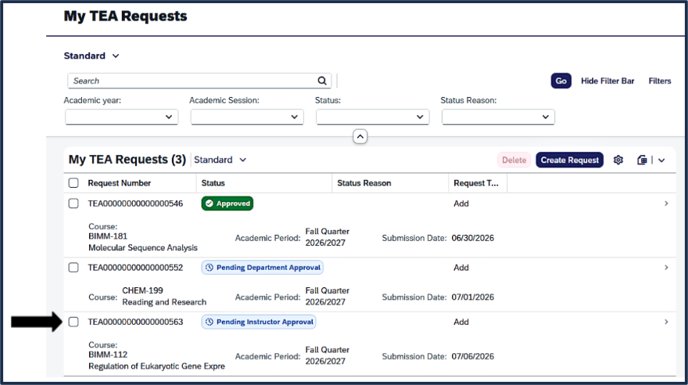
Tracking Your Request Status
You can see your request's current status and any reviewer comments from the request dashboard on your Student Homepage.Description of TEA Request Statuses
|
Status |
What it means |
|---|---|
|
Draft |
Your request has been started but not yet submitted |
|
Pending Instructor Approval |
Waiting on review from the course instructor |
|
Pending Department Approval |
Waiting on review from the academic department |
|
Pending College/Home Department Approval |
Waiting on review from your college (or if you’re a graduate student, from your home department) |
|
Pending Scheduler Action |
Commonly used with Special Studies requests, this step means the request is with the Registrar’s office to create a section that you can book. |
|
Department Hold |
Your department has placed this request on hold. Departments use this for a variety of reasons - you can check for a comment for more information, or reach out to them via the VAC if you don’t see a comment. |
|
Approved |
Your request was approved — If this was an Add request, you still need to book the course yourself. See What’s Next? below for next steps. |
|
Conditionally Approved |
Your request was approved, but is pending missing conditions/requirements. If you do not meet the conditions/requirements the department specified, your approval to remain in the course may be rescinded and you may be dropped from the course. |
|
Returned to Student |
Sent back to you, usually because something is missing or needs correction — check the comments in the History section to see why it was sent back to you, and then you can edit and resubmit |
|
Rejected |
Your request was denied — check the comment(s) in the History section for the reason |
Note: Additional statuses may appear depending on the course and department — for example, some courses require review from a program office, safety officer, or scheduler. If you see a status not listed above, your request is still moving through its approval process.
If your request has a per-requirement icon next to it, here's what each one means:
 |
Student does not meet enrollment requirement. |
 |
Student has met enrollment requirement with a real result (passing grade, transfer credit, test score, etc.). |
 |
Enrollment requirement has been overridden with an approved TEA request. |
 |
Student's TEA request is conditionally approved, but the student has not met the requirement and the TEA request has not been changed to fully approved. |
 |
Requirement is in progress (either past or current term). |
 |
This requirement is irrelevant, because something else is overriding it. E.g. – a student meets the test requirements and prerequisites are no longer relevant. |
Request TEA Status Changes
You won't receive an email when your request status changes. Check the notification bell icon in the upper-right corner of TSS to see updates on your submitted requests. This notification bell icon is visible from any screen in TSS.
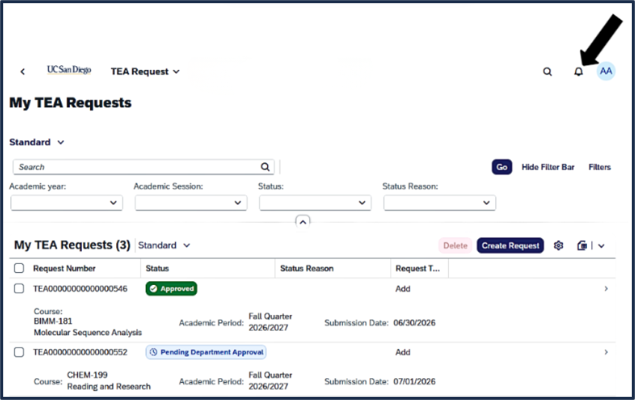
Request TEA Status History
If a reviewer leaves a comment, you can see it in the request's status history. To access the request status history, follow these steps:
Navigate to the My TEA Requests homepage.

Click on the applicable request row.

Scroll down to the History section and review the data.

What’s Next?
Once a decision has been made on your request, you will receive a notification via the notification bell icon at the top of the screen, as noted in the Request Status Changes section above.
You can also check the Status column on your My TEA Request homepage. Follow the below steps based on your request status.
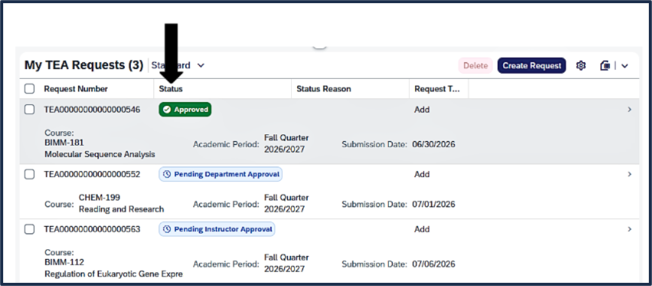
Approved Requests
What happens after your request is approved depends on the type of request you submitted.
Add Requests
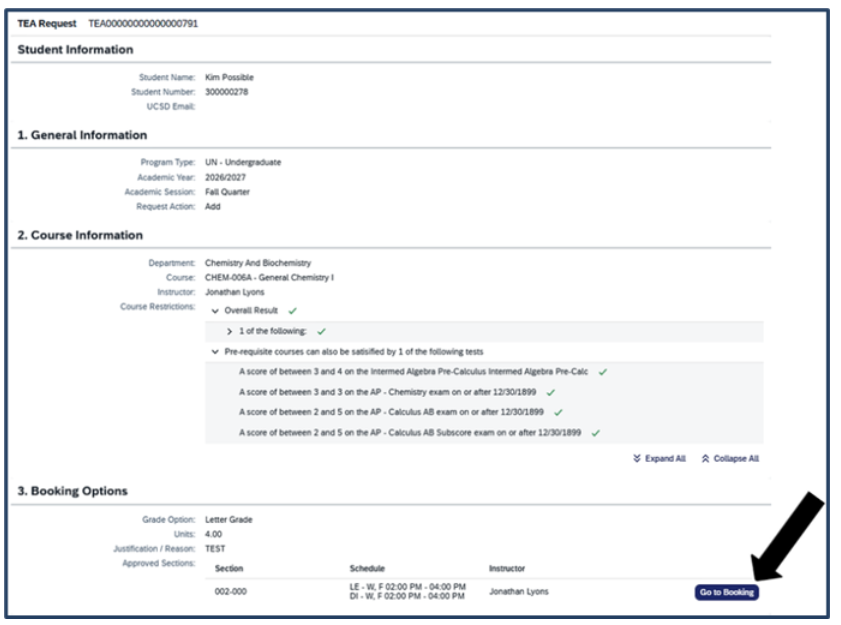
Your request has been authorized, but you are not yet booked into the course. You still need to book it yourself during your assigned Booking Window. Follow the steps below to access Booking from the My TEA Requests screen.
Open the My TEA Requests screen and click on the applicable approved TEA request row.

Scroll down to the booking section (section 3). Click Go to Booking on the appropriate class section.
Click Book/Save to book the course.
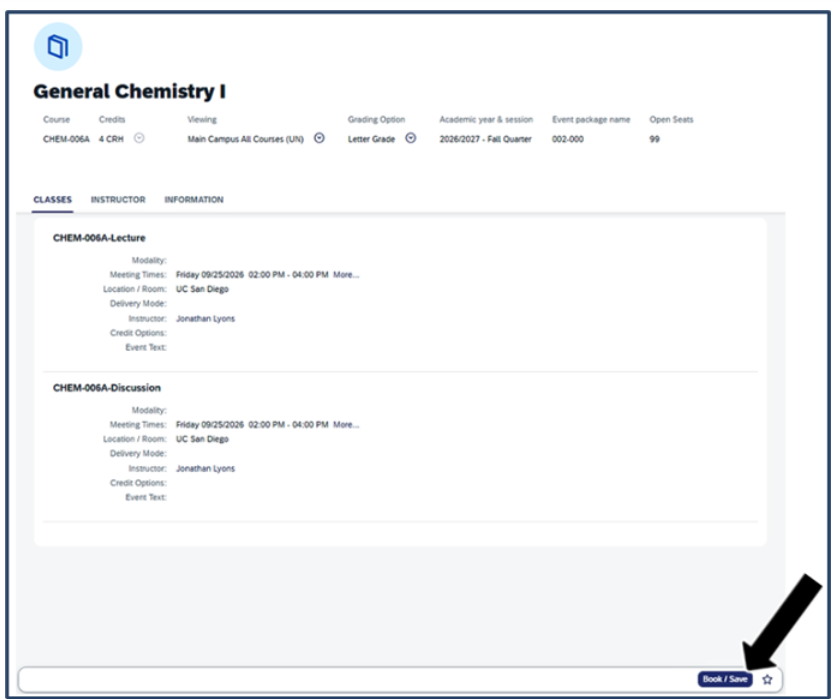
- Units: For variable-unit courses, the units you select when booking must match the units on your approved TEA request. For example, approval for 4 units will not authorize booking for 2 units. If you intend to take a different number of units, contact the department that approved your TEA to request an update.
- Section: Make sure you’re booking the section approved on your TEA request. Open the approved request and select Go to Booking next to that section.
See the Student Booking guide on the Student Training Help and Resources website for full booking instructions.
Note: Late add requests still pending when the term ends will continue to be reviewed. If approved, the Office of the Registrar will book you into the course. If you don't want this, cancel your pending request before the term ends — contact the office currently reviewing your request and ask them to deny it or return it to you. Note that the ability for students to cancel their own requests is not yet available.
Drop yourself from the course’s waitlist before submitting your TEA request. You cannot submit a late-add request while you are still waitlisted for the same course.
Waitlists stop processing after Friday of Week 2. You will remain on the waitlist unless you remove yourself, but it will not run again that term or automatically enroll you.
Drop and Change Requests
Approved drop and change requests are automatically processed by the system, effective the date you submitted them. No further action is needed.
Returned Request
Open your request and check the reviewer's comment in the History section for what needs to be corrected or added. Make the update(s) to the appropriate information and resubmit.
Rejected Request
Open your request and check the reviewer's comment for the reason. If you believe this was a mistake, contact your college or department advising office. Grad students should contact the Graduate Coordinator in their graduate program.
Questions?
- Undergraduates, contact your undergraduate college or department advising office, or visit the Virtual Advising Center (VAC).
- Grad students, contact your Graduate Coordinator in your graduate program.
- Technical or access issues related to TEA should be directed to the TSS support resources.