Direct Deposit Accounts in TSS
This guide walks you through adding or modifying a direct deposit account in TSS, so eligible refunds go straight to your bank account instead of waiting for a paper check.
Use the My Bank Accounts app in TSS to manage your direct deposit information.
Important notes:
- You can maintain one active direct deposit account at a time. To change your banking information, see Manage Banking Information below for instructions to update or delete your existing direct deposit account.
- Do not edit the “valid to” end date — leave it as 12/31/9999. When you add a new address in TSS, it will automatically end-date your prior address.
- Only U.S. bank accounts can be added for direct deposit.
- Direct deposit is for payments/ refunds only. UC San Diego will not use your direct deposit information to withdraw funds from your bank account. Your direct deposit information is separate from any payment method used in TritonPay.
Before You Begin
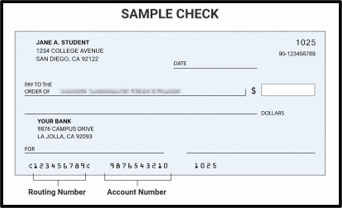
Before adding a direct deposit account in TSS, have your U.S. personal checking or savings account number and routing number available. Use your bank account and routing numbers, not the numbers printed on your debit card.
You can find your routing and account numbers through your bank's website or mobile app, or on a paper check. Contact your bank if you're unsure which routing number to use for electronic deposits.
Access My Bank Accounts in TSS
Log in to TSS at sis.ucsd.edu and navigate to your Student Overview Homepage.
From the TSS Student Overview Homepage, locate the TSS Apps – Main Campus column and select My Bank Accounts.

Once the Direct Deposit Account screen displays, select the plus sign / Add (+) button to add a direct deposit account.
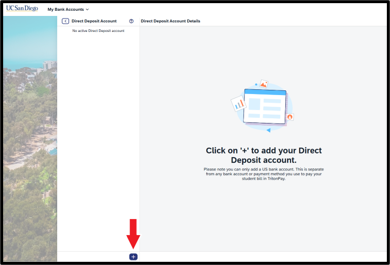
Note: Only U.S. bank accounts can be added for direct deposit.
Add New Direct Deposit Information
This section outlines how to enter your personal banking information and enroll your account in direct deposit.
On the Add Direct Deposit Account page, enter the required banking information in the following fields:
- Student Legal Name: Enter your legal name.
- Account Type: Select Checking Account or Savings Account.
- Bank Country: Confirm US - United States is selected.
- Routing Number: Enter your bank's routing number (must be 9 digits; see paper check example above).
- Bank Account: Enter your bank account number (cannot be longer than 15 digits; see paper check example above).
- Nickname: Enter an optional nickname to help identify the account. Do not enter any sensitive personal information in this field. Your chosen nickname will be fully displayed.

Note: Fields marked with a red asterisk (*) are required.
Review the account type, bank, routing number, and account number you entered. Click Save in the bottom right corner.

When prompted “Are you sure you want to set up this account as your direct deposit account?”, select Confirm.

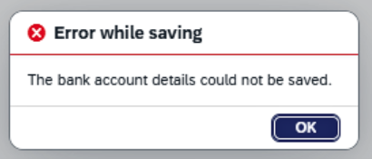
Confirm that your direct deposit account was saved by refreshing your screen. The newly added account will appear, noted by XXXXX and the last four digits of your account number (e.g., XXXXX9597).

Note: You may see the routing number listed under both the Routing Number and Account Name. This is normal, expected behavior.
Do not edit the “valid to” end date — leave it as 12/31/9999. When you add a new address in TSS, it will automatically end-date your prior address.
Once your direct deposit information is submitted, your direct deposit is active immediately and able to receive eligible refunds. Eligible refunds from UC San Diego, such as financial aid and housing refunds, can be deposited directly into your designated bank account.
For direct deposit eligibility requirements, refund timing, and troubleshooting, see the Student Financial Solutions web page: Enroll in Direct Deposit
Manage Bank Information (edit or delete/deactivate accounts)
Already have a direct deposit account on file? Use My Bank Accounts to edit or deactivate it — you don't need to contact anyone to make a change.
Edit Account Information
Use My Bank Accounts to update your account type or account nickname.
Log into TSS and navigate to your Student Overview home page.
From the TSS Student Overview Homepage, locate the TSS Apps – Main Campus column and select My Bank Accounts.
Click Edit on the bottom right of the screen.

Enter your full bank account number (not the routing number) in the Account Number field. Click Verify.
Do not edit the “valid to” end date — leave it as 12/31/9999. When you add a new address in TSS, it will automatically end-date your prior address.

Note: You have 3 attempts to verify your bank account. After 3 failed attempts, you'll be locked out for 24 hours.
Fields available for editing change from grey to white. The editable fields are: Student Legal Name, Account Type, and Nickname. Make any necessary changes and click Save at the bottom right.
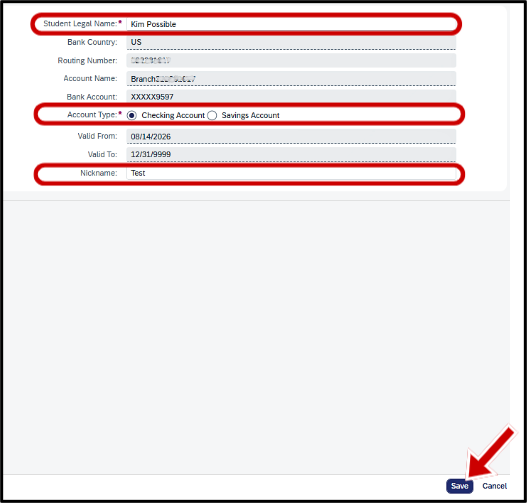
Editing requires dual authentication prior to saving any changes. Enter your full bank account number again (not the routing number) in the Account Number field. Click Verify.
A success message will appear on the screen.

You have completed the steps to edit your direct deposit account information in My Bank Accounts. You can confirm that your direct deposit account was updated by refreshing your screen.
Delete or Deactivate Account Information
Log into TSS and navigate to your Student Overview home page.
From the TSS Student Overview Homepage, locate the TSS Apps – Main Campus column and select My Bank Accounts.
Click Deactivate on the bottom right of the screen.
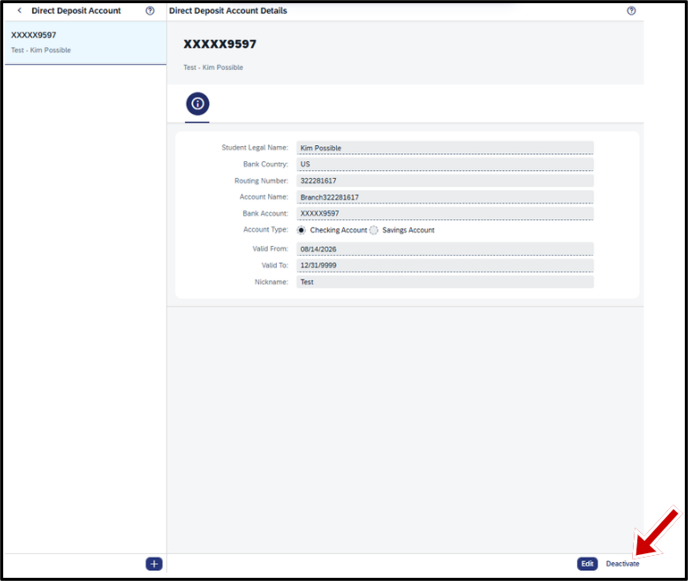
Enter your full bank account number (not the routing number) in the Account Number field. Click Verify.
Note: Your account will lock after 3 successful attempts. You may access it again after a 24-hour waiting period. If you need to unlock your account sooner, please contact Student Financial Solutions by submitting a Service Now ticket via Student Services and Support.
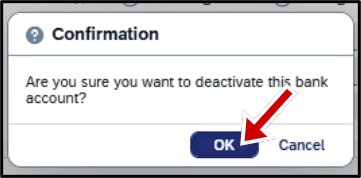
Click OK to confirm you wish to deactivate the account. If you reach this confirmation screen in error, click Cancel.
A success message will appear on the screen.
Refresh your browser to confirm the account has been successfully deactivated/ deleted. You'll know the deactivation/ deletion was successful if the account is no longer visible on the My Bank Accounts screen. The screen also displays “No Active Direct Deposit Account” in the upper left corner.