Submitting Specialization Requests
A Specialization Request is used to request changes to your major or minor, including adding and dropping a minor, or adding and dropping a double major. This guide walks through each request type from start to finish.
This application is only available to main campus students who are currently enrolled. Students who are not currently enrolled, DES students, School of Medicine, School of Pharmacy, and visiting students cannot use this application.
Before You Start
Thinking about changing your major, adding a minor, or picking up a second major? You can do it right from TSS through the Specialization Request app. Here are some helpful things to know before you dive in:
-
You can only have one pending specialization request at a time. If you try to start a new one while another is still pending, you’ll see: “You have a pending specialization request which must be cancelled or processed before you can submit another.” Wait for your current request to finish, or cancel it if you no longer need it.
-
Undergraduates can have up to two minors. If you already have two, you cannot add another. To add a second minor, you must be in good academic standing.
-
You can cancel your own request while it’s waiting on department or college approval. See Cancelling a Pending Request below.
-
Some requests need approval before they’re finalized, so don’t worry if you don’t see an update right away. Requests that need an advisor’s review can take several weeks. You can check your request’s status any time on your Specialization Requests screen. If your request hasn’t moved after four weeks, contact the academic department.
-
You can have up to two majors. To add a second major, choose Add Double Major in the app. Your current major stays on your record, and the new one is added next to it.
-
If you want two majors and neither one is your current major, change your primary major first. Once that’s approved, add the second major as a double major.
-
If you already have a double major and want to switch both majors, drop one of your majors first. Once that’s approved, change your primary major, then add your new second major.
-
See If You Want Two New Majors below for the specific steps.
-
-
Some majors and minors can’t be combined. For example, a Bioengineering major can’t add a Computer Science minor. If a combination isn’t allowed, you’ll see a red X and won’t be able to continue. See Specialization Restriction Block below for an example.
-
You can’t request a selective major in the app. Selective majors have their own application and selection process.
-
If you’ve changed your major in the last 14 calendar days, you can’t submit another major change yet. You’ll see: “You have had a change of major within the last 14 calendar days.” This doesn’t stop you from adding a double major or minor.
-
If you’ve earned 150 or more units, you don’t need to submit a quarter-by-quarter plan.
Specialization Restriction Block
A red X means your selected major/minor combination is restricted. Review the message for details, then select an allowed combination. Contact your academic advisor if you have questions.
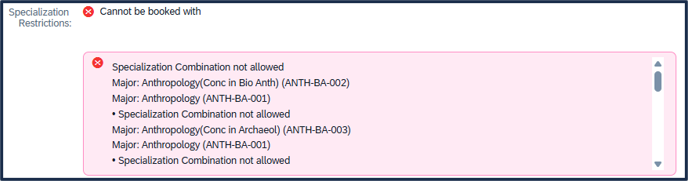
Note: You can’t request a selective major, a third major, or a third minor in the app. If you have questions, contact your academic advisor.
Step 1: Create a Specialization Request
Find the Request Form
Log in to TSS at sis.ucsd.edu
Click on the search bar.

Type Specialization Request - Student into the search bar and click on Specialization Request - Student.

Click Create Request.

Create the Specialization Request
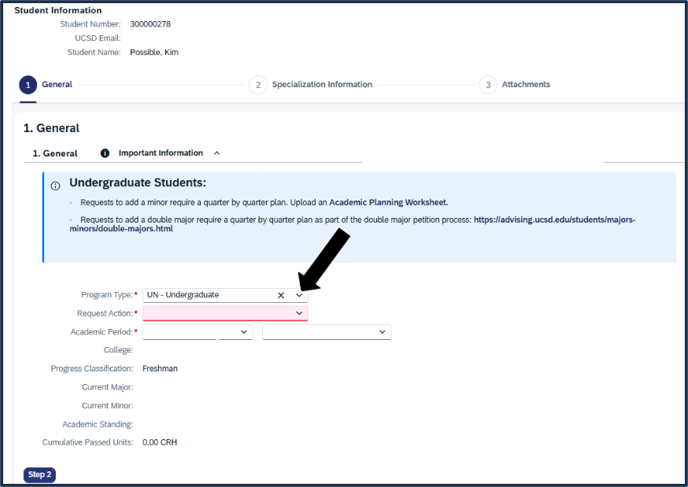
Depending on the selected Program Type, a message box will display important reminders, including:
- Requests to add a minor require a quarter-by-quarter plan. Upload an Academic Planning Worksheet.
- Requests to add a double major require a quarter-by-quarter plan as part of the double major petition process. Download the form from the Advising: Double Majors page.
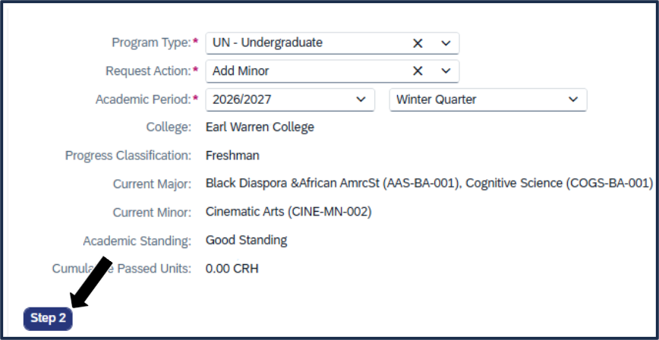
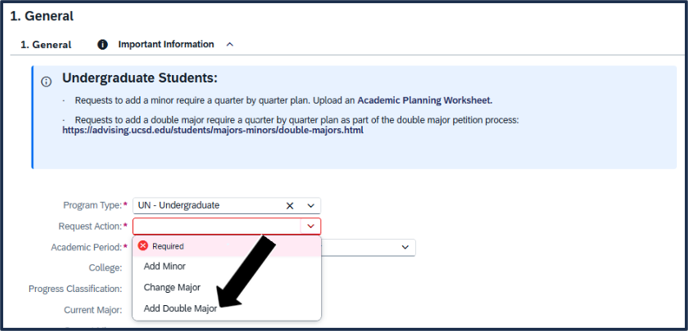
Click the Request Action dropdown and choose the type of request you're submitting.
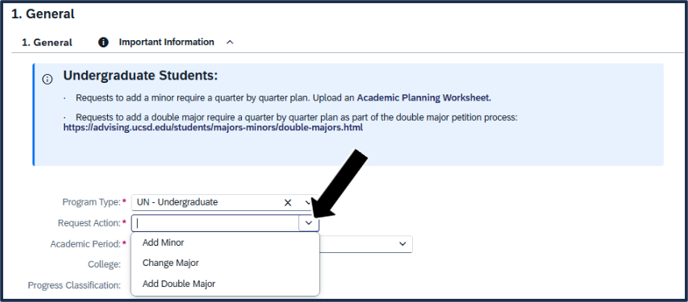
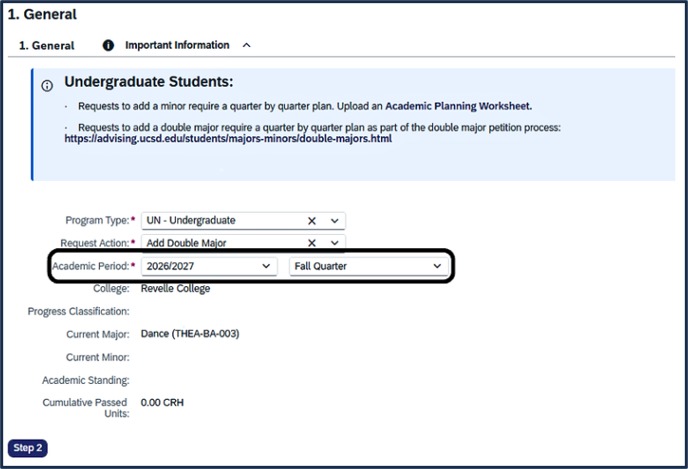
Click the Academic Period dropdown for which you're submitting the request and select the appropriate academic year.

Click the dropdown to the right of the Academic Period field and select the appropriate term, current or future.

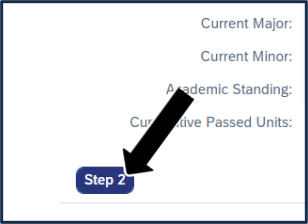
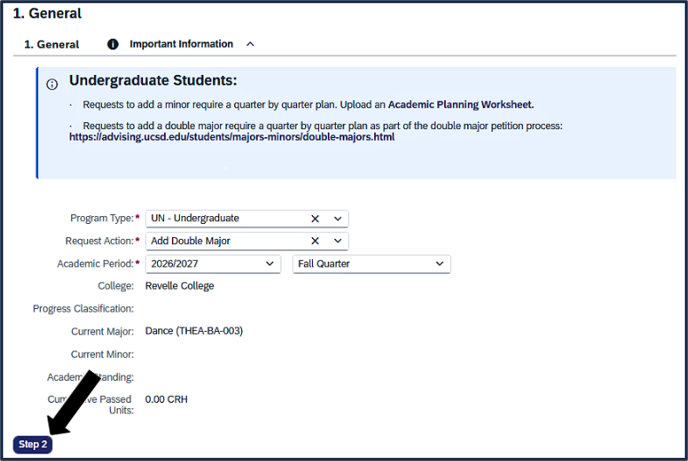
Click Step 2 to continue.
Step 2: Specialization Information (by Request Action)
Request Action: Change Major
Changing your major replaces your current major with a new one. This option is available to both undergraduate and graduate students.
Select the major you want to change to by clicking on the search icon.

Type any keywords from your desired major name into the search bar and hit Enter. Click on your desired major from the resulting list. Check the list of Undergraduate Majors if you have questions about which to select.
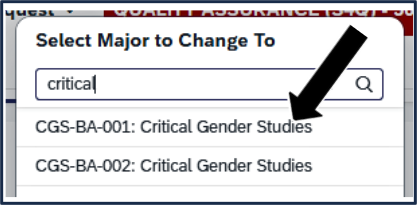
Note: Pick your major from the list of results. If you try to type a major’s name, you’ll see “Please select a valid option from the suggestions” and won’t be able to continue.
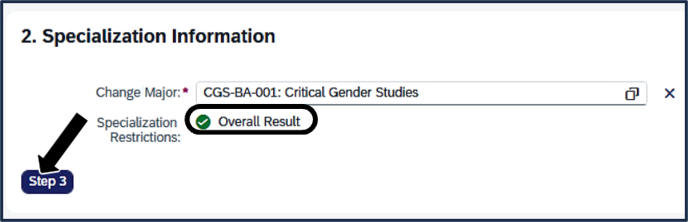
Review the Specialization Restrictions section. A green checkmark under Overall Result means there's no restriction blocking your request. Click Step 3.
Request Action: Add Minor
Adding a minor puts a minor on your record alongside your major. You’ll fill out an Academic Planning Worksheet with only the courses you plan to take for your minor, then pick your minor in the app. You don’t need to list every course in your plan, since your major advisor and college advisor won’t review it. If you’ve already earned 150 or more units, you don’t need a quarter-by-quarter plan.
Click on the Academic Planning Worksheet hyperlink.
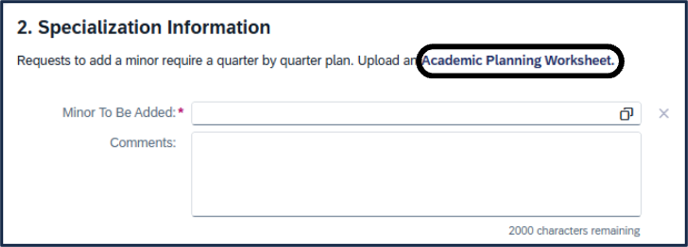
This link brings you to a Google Sheets document. Click Make a Copy.

The following form will open.
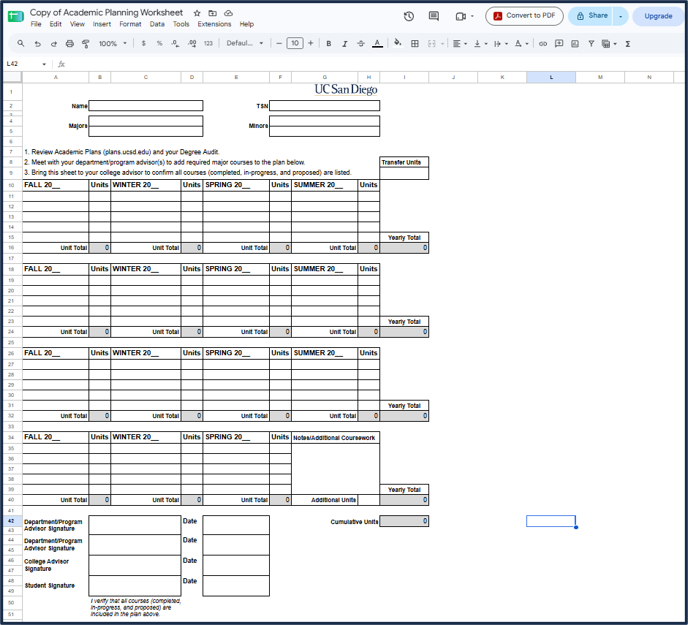
Once you make the copy, complete the form and download to your computer as a PDF document. Make sure to save the document with a name you can easily remember and identify. You will upload this required document as part of Step 3: Adding Attachments (outlined below). Your minor request cannot be reviewed or approved without this document.
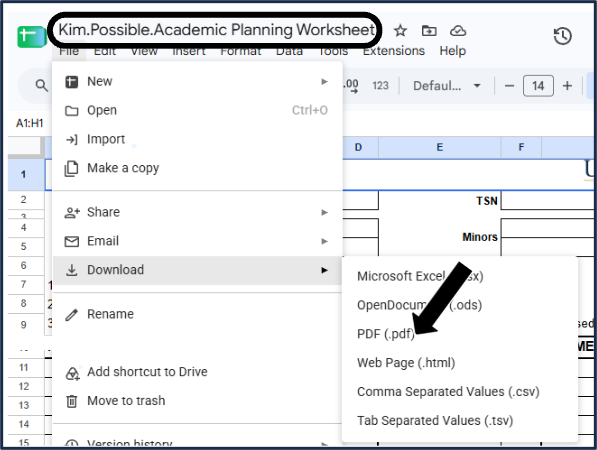
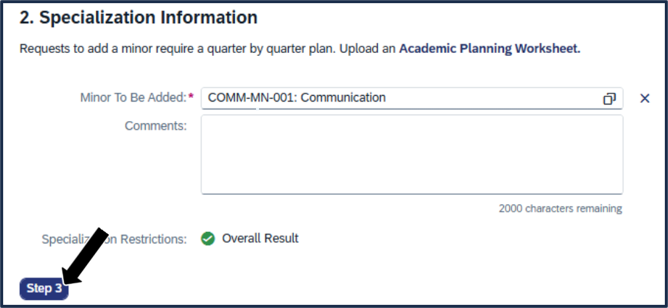
Close the Google Sheets window to return to the TSS Specializations App screen. In the Minor To Be Added search field, type the beginning of the minor name, or click the search icon to browse all options. Click on your desired minor from the results list.
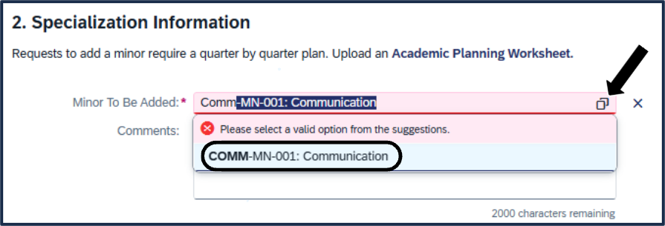
Review the Specialization Restrictions section below for a green checkmark next to Overall Result. If you do not see a green checkmark next to Overall Result, see Specialization Restriction Block above.
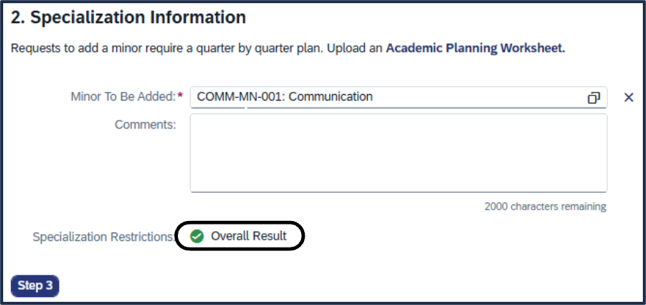
Click Step 3 to continue.
Skip below to Step 3 of this guide: Adding Attachments to add the required worksheet attachment.
Request Action: Drop Minor
Dropping a minor removes it from your record. These requests are approved automatically, so no one needs to review them.
Select Drop Minor from the Request Action dropdown.
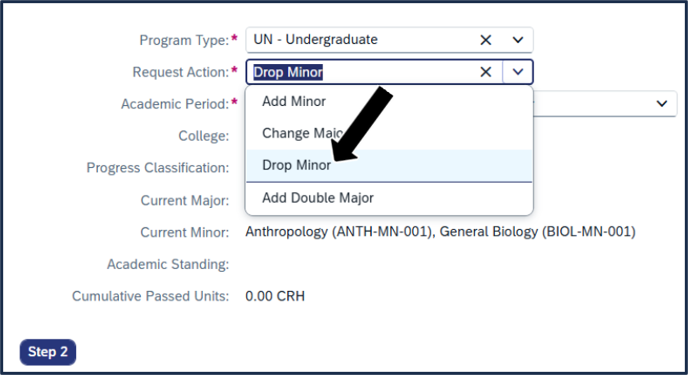
Select the Academic Period and Year.
Click Step 2.
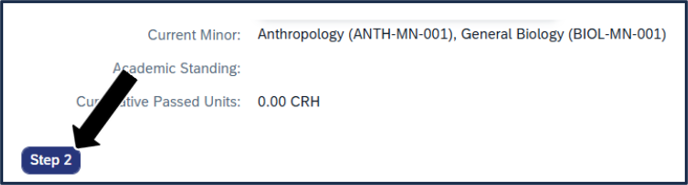
Click the dropdown menu and select the minor you want to remove.

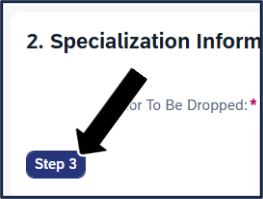
Click Step 3 to continue.
Request Action: Add Double Major
Adding a double major keeps your current major and adds a second one. Your current major doesn’t change, and it becomes your primary major. You’ll also need a completed Double Major Petition, which you’ll upload in Step 3.
For advising guidance on how to complete the double major petition, see the Undergraduate Advising website. If you’ve earned 150 or more units, you don’t need a quarter-by-quarter plan.
In the search field, type the beginning of the major name, or click the search icon to browse all options.

Type any keywords from your desired major name into the search bar and hit Enter. Click on your desired major from the resulting list.
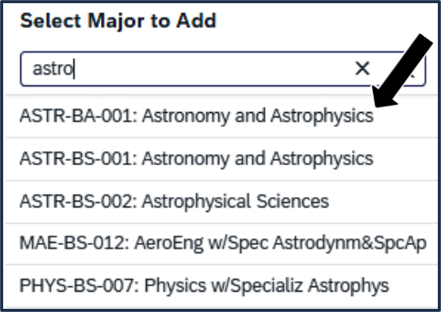
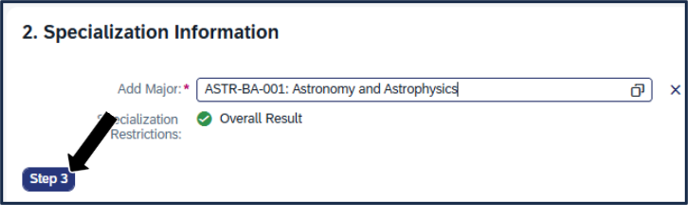
Review the Specialization Restrictions section. A green checkmark under Overall Result means there’s no restriction blocking your request.

Click Step 3 to continue.
Note: If you already have two majors, the app won’t let you submit additional majors. If you want a third major, talk to your advisor about a petition.
Request Action: Drop Double Major
If you have a double major and want to remove one of your majors, use this option. These requests are approved automatically, so no one needs to review them. Note: The 14-day restriction does not apply to dropping majors.
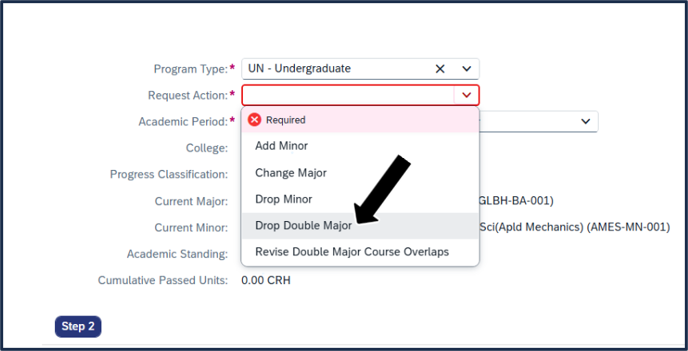
Select Drop Double Major from the Request Action dropdown menu.
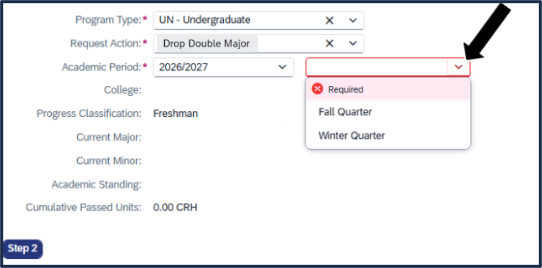
Click the dropdown to the right of the Academic Period field and select the appropriate term, current or future.
Click Step 2.
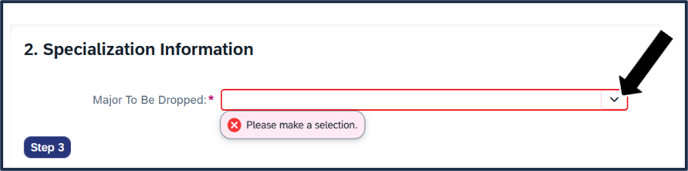
Click the major you want to remove from the Major To Be Dropped dropdown menu.
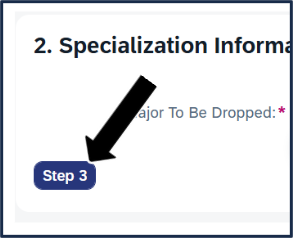
Click Step 3 to continue.
Note: Skip Step 3 of this guide: Adding Attachments. You do not need to upload an attachment to drop a double major.
If You Want Two NEW Majors
If you want two majors and neither one is your current major, you’ll need two separate requests. You can only have one pending request at a time, so you’ll do them one after the other.
If you already have a double major and want two different majors, you will need three requests: submit a request to Drop Double Major first, and then complete Request 1 and Request 2 below.
Request 1: Change your major
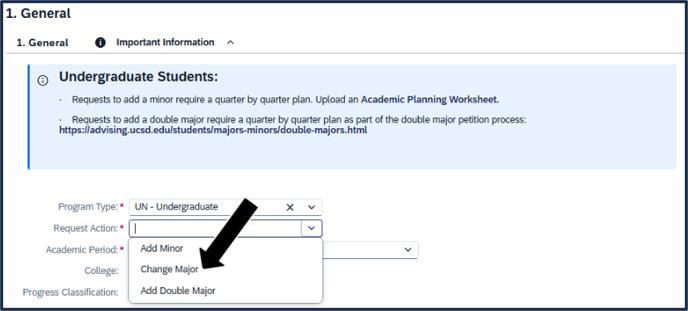
Start a new request. Select Change Major from the Request Action dropdown.
Select the appropriate Academic Period information, including Year and Term.
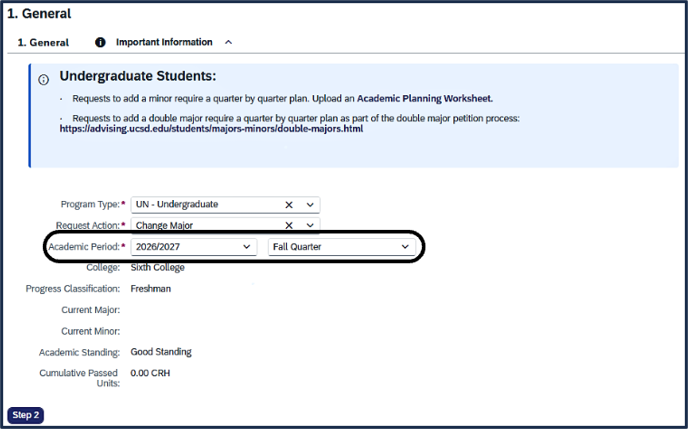
Click Step 2.
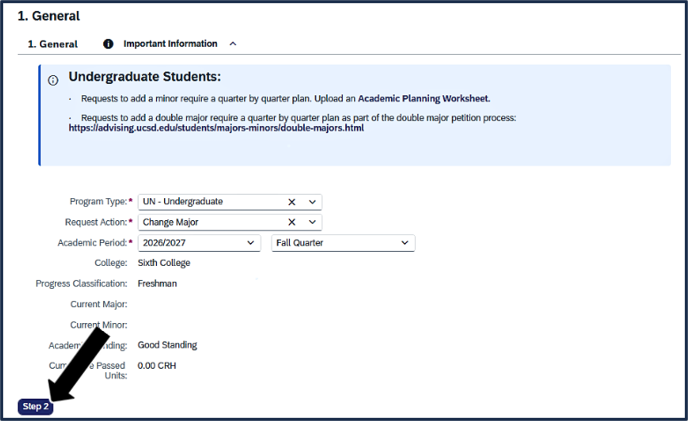
Click the search icon to search for and select the primary major you want.

Click on your desired major (for example, Dance).

Click Step 3.
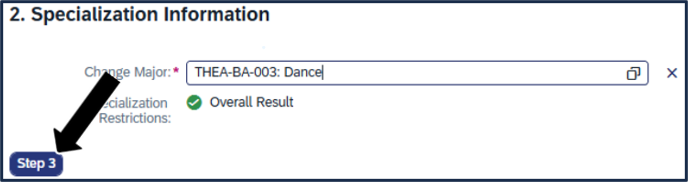
Complete the applicable attachment instructions below in Step 3: Adding Attachments, then follow Step 4: Review and Submit to submit this request. Return here after the request shows Approved.
Wait for this request to be Approved. The status of your request is available on your Specialization Requests screen.
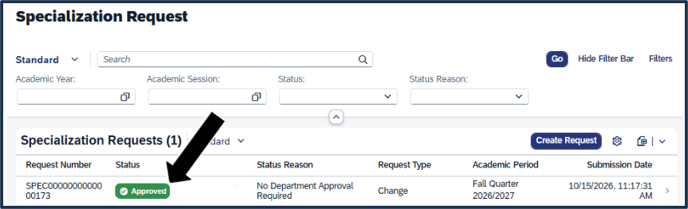
Request 2: Add the second major
Start a new request. Select Add Double Major from the Request Action dropdown.
Select the appropriate Academic Period information, including Year and Term.
Click Step 2.
Click the search icon to search for and select the second major you want.

Click on your desired second major (for example, Communication).

Click Step 3.
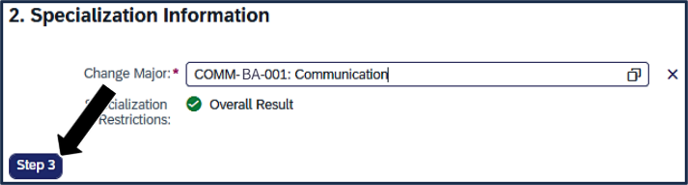
Continue through Step 3. Complete the applicable attachment instructions below, in Step 3: Adding Attachments.
Request Action: Revise Double Major Course Overlaps
If you have a double major but need to update the courses that overlap between your two declared majors, you must submit a request to revise the double major. You will need to upload an updated double major petition form. Find information on the Advising website.
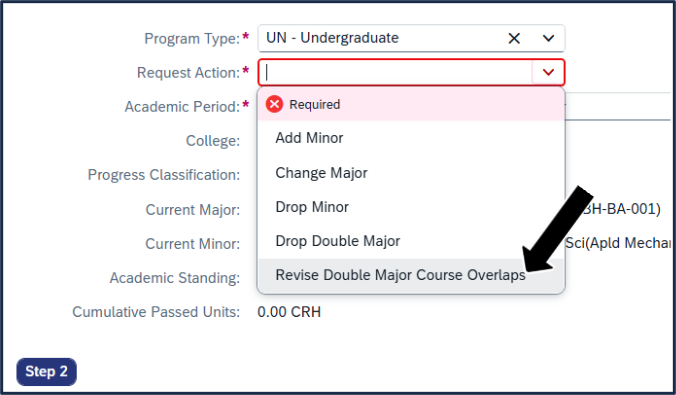
Select Revise Double Major Course Overlaps from the Request Action dropdown.
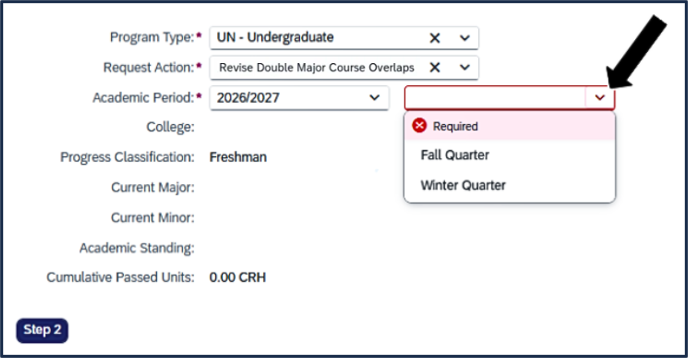
Select the appropriate Academic Period information, including Year and Term.
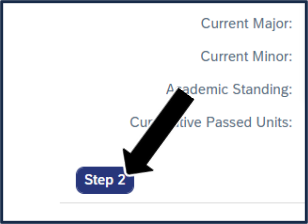
Click Step 2.
Go to Step 3: Adding Attachments below, to upload your updated petition. Your request can’t be approved without it.
Your request goes to both departments, your college, and then degree audit, just like adding a double major.
Step 3: Add Attachments
This step allows you to upload supporting documents using the Browse button. Attachments are required to add a minor, add a double major, or revise double major course overlaps.
Acceptable file types include PDF, DOC, DOCX, JPG, PNG.
Adding Attachments
Click the Browse button and select the appropriate file from your computer.
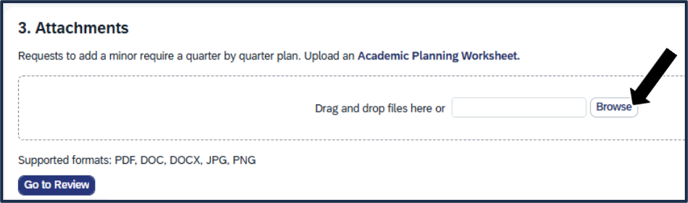
Once added, click Go to Review.

If You're Adding a Minor
You’ll see a note that a Minor Course List is required for this change. This is the Academic Planning Worksheet you completed and downloaded in Step 2 above. Only list the courses for your minor. If you’ve earned 150 or more units, you don’t need a quarter-by-quarter plan.

Click Browse and upload the completed worksheet from your computer. Your minor request can’t be approved without it.
Once added, click Go to Review.
If You’re Adding a Double Major
You’ll see a note that a Double Major Petition Form is required for this change. Download the form from the Advising: Double Majors page. If you’ve earned 150 or more units, you don’t need a quarter-by-quarter plan.
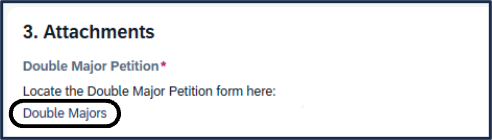
Complete the form and save it in one of these formats: PDF, DOC, DOCX, JPG, PNG.
Return to the Specialization Request screen. Click Browse and upload your petition form. Your double major request can’t be approved without it.
Once added, click Go to Review.

Step 4: Review and Submit
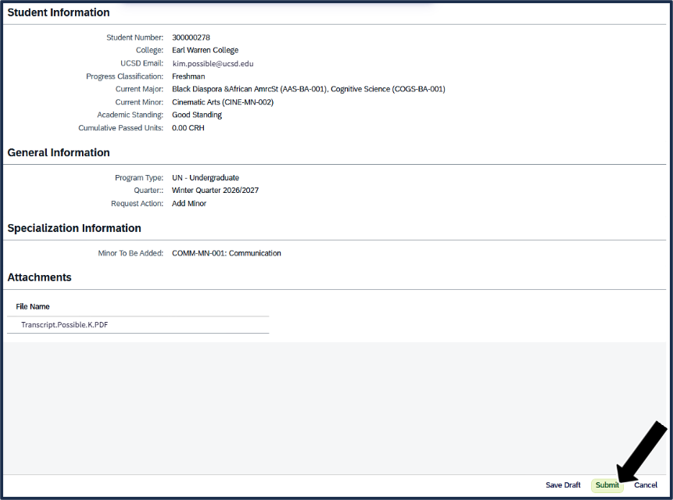
Review Your Changes
Review the following sections to confirm accuracy:
- Student Information
- General Information
- Specialization Information
- Attachments

Note: Progress classification, academic standing, and cumulative passed units may be inaccurate until the end of Fall 2026.
You may choose one of the following from the menu on the bottom right of the screen:
- Save Draft — saves your request without submitting it. Use this option if any of the information above is incorrect. You can go back and correct it when it’s in draft form.
- Submit — submits your request for review.
- Cancel — discards the request.
If everything is accurate, click Submit.
After You Submit / Your Request Status
Your request will appear under Specialization Requests with a request number starting with SPEC followed by a series of numbers. Save this number for reference.

After you submit, check the request status on your Specialization Requests screen. All requests begin in Submitted status. Most requests then move to Pending Department Approval status. If your request doesn’t need a review, it’s approved right away and the change shows up on your record within minutes.
Drop Minor and Drop Double Major requests are approved automatically without staff review. See the chart below for other statuses and actions that are reviewed.

|
Status |
What it means |
|---|---|
|
Pending Department Approval |
A department is reviewing your request. This may take several weeks. Departments review all “Add minor” requests. Departments review some “Add Major” and “Change Major” requests. |
|
Pending College Approval |
Your college is reviewing your double major request. This may take several weeks. |
|
Pending Degree Audit Action |
All “Add Double Major” and “Revise Double Major” requests are reviewed for degree audit updates. |
|
Pending Registrar Action |
Some requests need the Registrar's staff to review and finalize the request. |
|
Returned to Student |
A reviewer sent your request back because something needs fixing, usually your attachment. Open your request and read the reviewer’s note in the yellow banner at the top. Upload a corrected attachment and click Resubmit. The review starts over from the beginning. |
|
Grad status, e.g., Pending Current Coordinator |
Your graduate program is reviewing your request. |
|
Approved |
Your change is on your record. |
|
Rejected |
Your request wasn’t approved. Check the request history for the reason, fix any issues, and submit a new request. |
Click into your requests at any time to view more detail, such as:
- Request type, category, academic period, and submission date
- Request history, including any status changes and advisor comments
Important Review Notes
-
If your request is rejected, you'll see the reason in the request history (for example, “Missing Documents”). If your request is rejected and you'd like to resubmit, review the reason provided and correct any issues before submitting a new request.
- Double major requests get reviewed by more people than other requests. Yours goes to:
- The department of your current major
- The department of your new major
- Your college
- If a reviewer sends your request back to you, read their comments in the request history. Usually they need you to fix or replace your attachment. Upload the new attachment and click Resubmit. You can’t change the major or minor you requested. If you need something different, cancel this request and start a new one. When you resubmit, the review starts over from the beginning.
Additional Tasks
Cancel a Pending Request
You may cancel a specialization request if it is in a Pending Department Approval or Pending College Approval statuses only.
If your request reaches Pending Degree Audit Action or Pending ISEO, your change has already been made and you can’t cancel it. If you change your mind after that, you will need to submit a new request to drop the major/change minor/drop double major.
To cancel a request while it is Pending Department Approval or Pending College Approval, follow the steps below:
Click on the applicable request row in the Specializations Request screen.
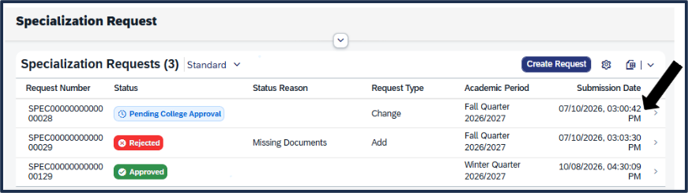
Click Cancel Request on the bottom right of the screen.

Click OK.

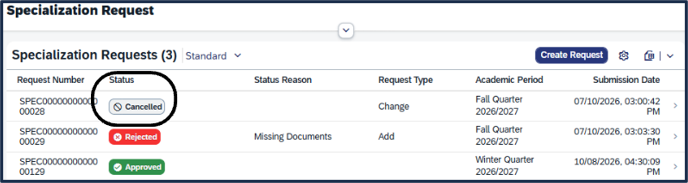
The specialization request now shows Cancelled in the Status column on the Specializations Request screen.
Change Your Major to Undeclared
Use Change Major, then select one of the Undeclared majors. This is allowed if you have earned fewer than 90 units.
Questions?
- Undergraduates, contact your undergraduate college or department advising office, or visit the Virtual Advising Center (VAC).
- Grad students, contact your Graduate Coordinator in your graduate program.
- Technical or access issues related to specialization requests should be directed to the TSS support resources.